
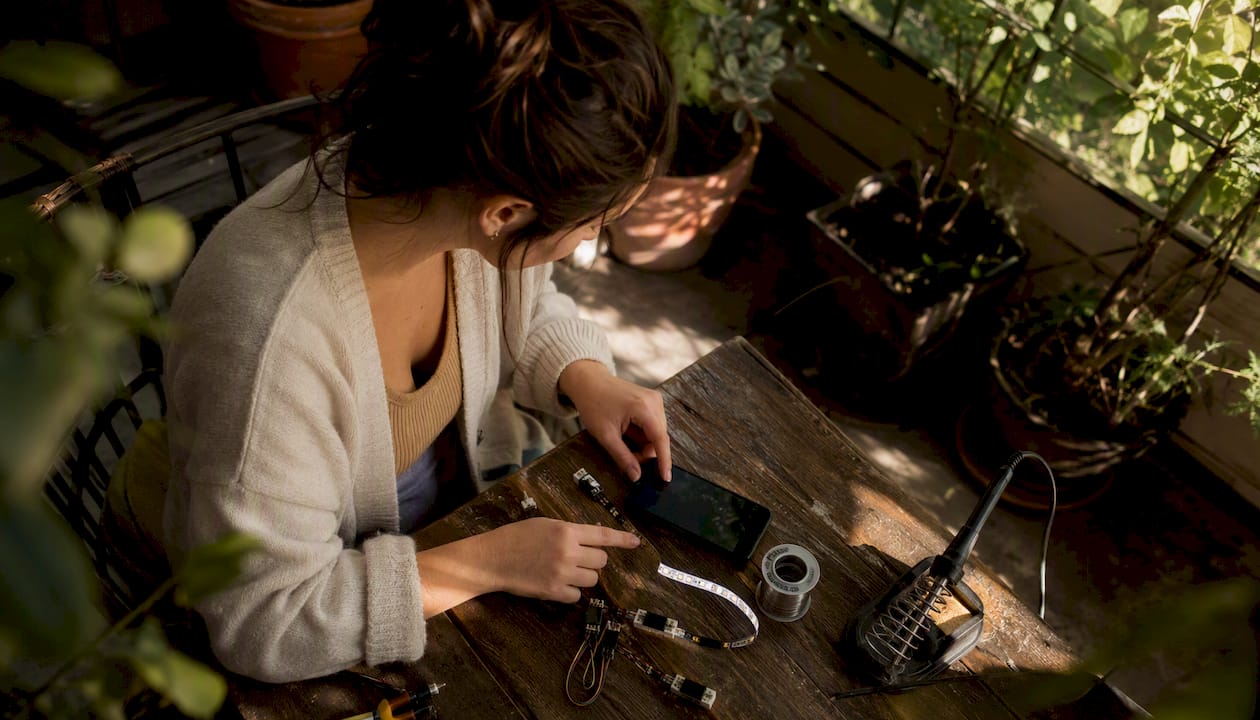
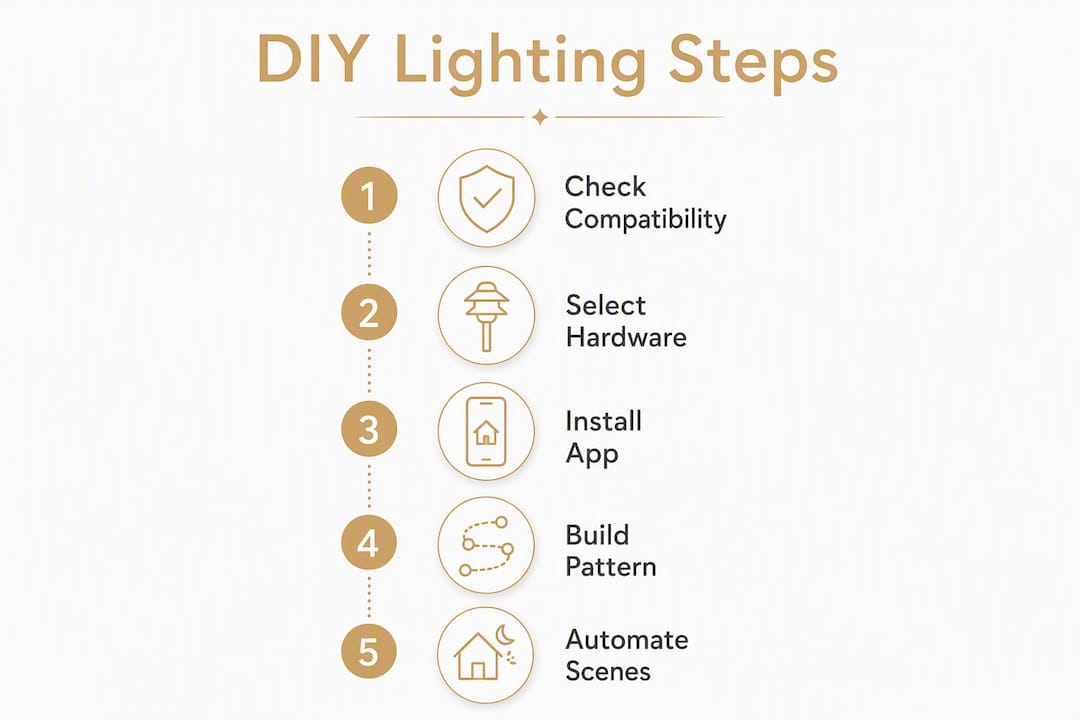
Customizing lighting patterns from a smartphone takes three steps: confirm your hardware is compatible, open the controller app or web UI, select or build a pattern, and apply it. Before you tap anything, run this quick checklist:
- Phone OS: Android 10+ or iOS 14+ covers the vast majority of apps and Bluetooth Low Energy (BLE) scanning requirements.
- Connection type: Confirm whether your lights use Wi-Fi (2.4 GHz only for most controllers) or Bluetooth, then grant the required permissions (location for BLE scanning, notification listener for notification-based effects).
- Controller or bulb type: Identify whether you have Wi-Fi smart bulbs, an addressable LED strip with a controller running WLED or similar firmware, or a phone-native feature like Samsung’s Edge lighting.
- Quick test: Load the default white scene first. If it responds, your connection is solid and you can move on to building custom patterns.
Table of Contents
- Does your phone, app, and hardware actually work together?
- How do you build and run a custom pattern from your phone?
- How do you save, share, and automate your lighting scenes?
- What advanced techniques produce richer, more dynamic scenes?
- Why isn’t your lighting pattern working? Common fixes
- When does a professional permanent system make more sense?
- Which path is right for your skill level and goal?
- Key Takeaways
- The case for knowing your limits
- Permanent smartphone-controlled lighting for your home
- Useful sources and documentation
Does your phone, app, and hardware actually work together?
Getting the right combination of app, controller, and hardware is the step most people skip, and it causes most of the frustration. Here is what to check before building anything.
Connection type and permissions
- Wi-Fi (2.4 GHz): Required for WLED, MagicHome, and most hub-based systems like Philips Hue. Your phone and controller must be on the same network. Many routers have client isolation enabled by default, which blocks device-to-device traffic — disable it for the lighting VLAN or network segment.
- Bluetooth / BLE: Works for shorter-range single-bulb or strip setups. Android requires location permission to scan for BLE devices; iOS requires Bluetooth permission. Range drops sharply through walls.
- Notification listener / accessibility: Apps that react to phone notifications (Edge lighting, HoleyLight) need a notification listener grant, which Android treats as a sensitive permission.
Hardware categories and matching apps
| Hardware type | Common firmware/app | Connection | Notes |
|---|---|---|---|
| Wi-Fi smart bulbs | Manufacturer app (e.g., Govee, Kasa) | Wi-Fi | Scene editors built in; limited addressability |
| Addressable LED strips | WLED, MagicHome | Wi-Fi (2.4 GHz) | Full per-pixel control; web UI on phone browser |
| Hue-style hub systems | Philips Hue app, Home Assistant | Wi-Fi/Zigbee | Reliable; best automation depth |
| Matrix/Glyph panels | Glphy, GlyphMatrix Tasker Plugin | USB/BLE | Device-specific (Nothing Phone series) |
| Phone screen as light | Studio Light (Google Play) | N/A | Screen becomes an RGB panel; no external hardware |
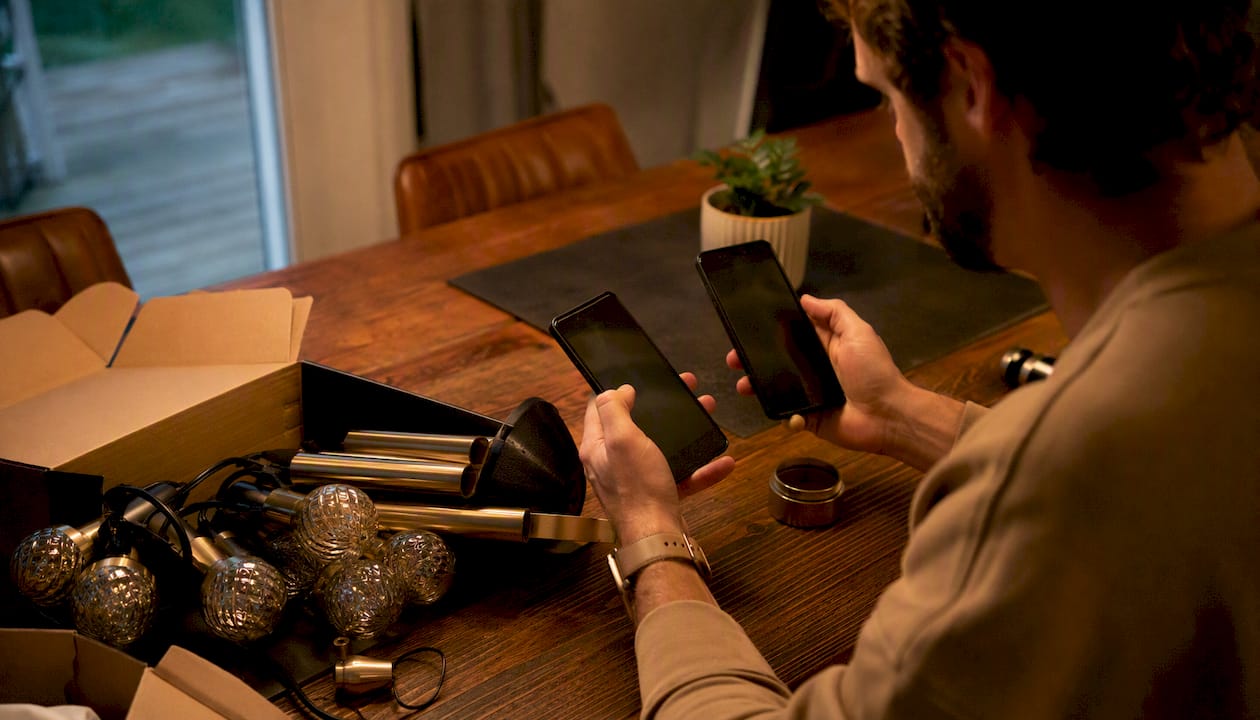
Phone-native features: useful but limited
Samsung Galaxy’s Edge lighting lets you set notification effects under Settings > Notifications > Notification pop-up style, with controls for style, color, transparency, width, and duration. It even works with the screen off. That is genuinely useful for ambient notification cues, but it only illuminates the phone’s own edge, not a room. For room-scale mood lighting, you need external hardware.
How do you build and run a custom pattern from your phone?
Three workflows cover the most common setups. Pick the one that matches your hardware.
Workflow 1: Wi-Fi smart bulbs (single room)
- Connect the bulb to your 2.4 GHz Wi-Fi network using the manufacturer’s app setup wizard.
- Open the app’s Scene or Effects tab.
- Tap Create scene, then use the color picker and brightness slider to set your base color.
- Add transition steps if the app supports it (most do under “DIY” or “Custom” mode).
- Name and Save the scene.
- Tap Apply to push it to the bulb. Test at full brightness before dimming.
Workflow 2: Addressable LED strip with WLED
WLED runs on ESP8266/ESP32 microcontrollers and exposes a web UI your phone browser can reach directly over Wi-Fi. No app install required, though the WLED app is available for Android and iOS.
- Flash WLED to your controller, connect it to 2.4 GHz Wi-Fi, and note its IP address.
- Open the IP in your phone’s browser (or the WLED app).
- Go to Presets, tap the + icon, and name your preset.
- Use the Colors tab to set primary, secondary, and tertiary colors.
- Choose an effect from the Effects list (e.g., “Palette,” “Twinkle,” “Colorloop”).
- Set speed and intensity sliders to taste, then tap Save to store the preset.
- To apply later, tap the preset name — it pushes instantly to the strip.
Example preset you can copy directly:
| Parameter | Value |
|---|---|
| Primary color | #FF6A (warm amber) |
| Secondary color | #1A1A2E (deep navy) |
| Effect | Twinkle |
This combination reads as a warm evening glow with occasional cool flickers — good for patio or living room accent use.
Workflow 3: Phone-native notification lighting
For Samsung Edge lighting, the setup is straightforward. For punch-out camera cutout devices, HoleyLight animates the camera cutout area with modes like Swirl, Blink, and Pie.
- Grant notification listener access under Settings > Apps > Special app access > Notification access.
- Open HoleyLight or your Edge lighting settings and select a mode.
- Assign colors per app or contact if the app supports it.
- Test by triggering a notification and confirming the animation fires.
- Switch to “Unholey Light” style or screen-off mode to reduce CPU wake time.
Pro Tip: HoleyLight’s developers note that certain modes can keep battery impact under roughly 1% per hour by using optimized foreground service handling. Configure separate modes for screen-on and screen-off states to get the best balance between visual effect and battery life.
How do you save, share, and automate your lighting scenes?
Building a great pattern once and losing it to an app update is a real risk. Saving and automating your work protects that effort.
Saving and exporting presets
- WLED: Presets are stored on the controller itself and can be exported as a JSON file from the Config > Security & Updates menu. Back this file up after any major change.
- Smart bulb apps: Most manufacturer apps (Govee Home, Kasa) save scenes to the cloud account, so they survive app reinstalls. Export options are limited; screenshot your settings as a backup.
- Sharing: WLED JSON preset files can be shared directly. Other apps rarely support cross-user pattern sharing natively — a screenshot of your color hex codes and effect settings is the most portable format.
Automating with schedules and integrations
- In-app schedules: Most smart bulb apps include a scheduler. Set scenes to activate at sunset or a fixed time without any third-party tools.
- IFTTT: Connect your smart home account to IFTTT to trigger scenes from external events — a calendar entry, a weather condition, or a button press.
- Home Assistant: The most flexible option for multi-zone control. Create a scene entity, assign it to a dashboard card, and trigger it from automations. Seasonal lighting automation becomes straightforward once scenes are defined as Home Assistant entities.
- Music sync: WLED’s “AudioReactive” usermod and several smart bulb apps offer microphone-based beat detection. Grant microphone permission, enable the feature, and the lights pulse with audio.
Pro Tip: Keep automation triggers simple at first. A single sunset-based schedule that activates your saved preset is more reliable than a multi-condition IFTTT chain, and it is easier to debug when something stops working.
What advanced techniques produce richer, more dynamic scenes?
Once basic presets work reliably, three techniques produce noticeably more sophisticated results.
Palette extraction from images
AI-assisted tools like Lepro’s LightGPM can take a photo and generate a full lighting design from it, which the user can then tune for brightness, speed, and color balance. The workflow:
- Upload or photograph a reference image (a sunset, a room interior, a piece of art).
- Let the tool extract dominant colors and map them to your light zones.
- Adjust saturation and brightness to suit the actual room size and fixture output.
- Save the result as a named preset.
Research on personalized lighting confirms that preferred illuminance and color vary significantly between individuals, so treat any AI-generated palette as a starting point, not a finished product. Iterate: create, test in the actual space, adjust.
Matrix animation and Tasker chaining
The GlyphMatrix Tasker Plugin for Nothing Phone devices supports drawing static patterns on a grid and triggering them via Tasker, but animated glyphs are not yet implemented in the plugin. The workaround is to save multiple static frames as separate presets, then use a Tasker profile to cycle through them on a timed loop — effectively simulating animation through rapid state switching.
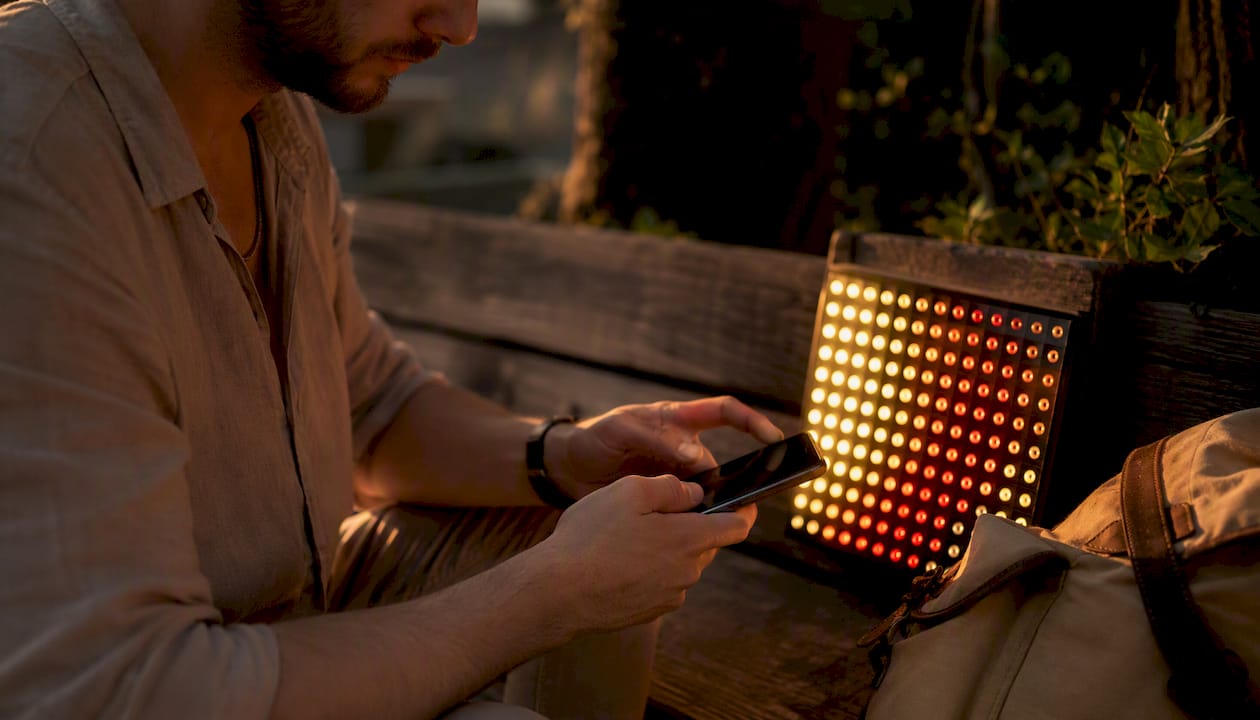
For WLED matrix setups, the firmware’s built-in effects handle animation natively, so Tasker chaining is only needed for custom sequences the built-in effects cannot produce.
Pro Tip: Keep animation frame counts low on ESP8266-based controllers. Complex multi-segment animations with high LED counts can cause visible stutter on lower-power microcontrollers. If you see lag, reduce the segment count or switch to a simpler effect and layer complexity through color palette changes instead.
The Glphy app for Nothing Phone users adds audio-sync triggers and notification-based pattern assignments on top of the native Glyph interface, making it the most capable option for that hardware without requiring a full Tasker setup.
Why isn’t your lighting pattern working? Common fixes
Most failures fall into four categories.
Pairing and connection problems
- Bluetooth drops: Move the phone within 15 feet of the controller with no walls between them for initial pairing. Interference from 2.4 GHz Wi-Fi channels 1, 6, and 11 can affect BLE; try switching your router’s Wi-Fi channel.
- Wi-Fi not connecting: Confirm the controller is on 2.4 GHz, not 5 GHz. Most LED controllers do not support 5 GHz at all. Check that client isolation is off on your router.
- Permissions denied: On Android, BLE scanning requires location permission even if you never share your location. On iOS, go to Settings > Privacy > Bluetooth and confirm the app is listed and allowed.
Flickering and color mismatch
Addressable LED strips are sensitive to supply voltage and grounding. Most DIY flicker issues trace back to an underpowered supply or a floating data line. Check that your power supply’s amperage rating covers the full strip load, and confirm the data line uses a level shifter if your controller outputs 3.3V to a 5V strip. Correct PWM frequency settings in WLED’s LED preferences also affect perceived flicker at low brightness levels.
App and firmware mismatch
- Open the controller’s web UI and note the current firmware version.
- Check the WLED GitHub repository for the latest stable release.
- Back up your presets JSON before updating.
- Flash the update via the OTA (over-the-air) update option in WLED’s settings.
- If the update breaks a feature, WLED supports rollback by flashing the previous binary manually.
Pro Tip: Never update firmware on a live event or the night before you need the system. Test updates on a spare controller or at least 48 hours before the lighting matters.
Quick troubleshooting checklist
- [ ] Phone and controller on the same 2.4 GHz network
- [ ] Client isolation disabled on the router
- [ ] Required permissions granted (location, Bluetooth, notification listener)
- [ ] Power supply amperage sufficient for strip length
- [ ] Firmware version matches app requirements
- [ ] Data line level shifting correct for strip voltage
When does a professional permanent system make more sense?
DIY smartphone lighting works well for indoor accent scenes and temporary setups. Several situations call for a professional installation instead.
Clear signals to hire a pro
- Roofline or soffit mounting that requires ladder work and structural fasteners
- Outdoor wiring that must meet NEC code and local permit requirements
- HOA rules specifying fixture visibility, color restrictions, or seasonal compliance
- Marine-grade weatherproofing for dock or waterfront installations
- Multi-zone systems covering the full exterior of a home or commercial property
What professional installation delivers
A professionally installed system from Foreverglowlighting includes engineered weatherproofing, integrated smartphone control through a reliable hub, code-compliant electrical work, and ongoing maintenance through the GlowCare subscription. The custom lighting installation process follows a defined sequence: site survey, design, permit application where required, installation, and programming/testing. Scene programming and multi-zone network bridging are handled during commissioning, not left to the homeowner.
For permanent outdoor entertaining spaces, the difference between a DIY strip and a professionally installed system shows up in longevity, weather resistance, and the consistency of smartphone control across all zones simultaneously.
Professional landscape lighting contractors, including Trew Landscape, also handle permanent exterior installs for homeowners who want a fully managed approach.
Safety note: Any work involving your home’s electrical panel, new circuit runs, or outdoor conduit must be performed by a licensed electrician. Smartphone-controlled lighting is low-voltage at the fixture level, but the supply wiring feeding the transformer or driver is line voltage and carries real shock and fire risk.
Which path is right for your skill level and goal?
- Beginners (app-only): Download a smart bulb app, connect a single Wi-Fi bulb, and test the built-in scene presets. No wiring, no firmware. Next step: save one custom preset and schedule it for sunset.
- Intermediate DIYers (WLED/strip projects): Buy an ESP32 controller, flash WLED, and wire a short addressable strip. Use the web UI from your phone to build and save patterns. Next step: plan your parts list (controller, power supply, strip density) before purchasing.
- Permanent outdoor or complex multi-zone: Skip the DIY path and schedule a site survey with Foreverglowlighting. The wiring, weatherproofing, and HOA compliance work is not a weekend project.
Key Takeaways
Customizing lighting patterns from a smartphone works reliably when you confirm hardware compatibility first, choose the right connection type, and save presets before automating.
| Point | Details |
|---|---|
| Compatibility check first | Confirm 2.4 GHz Wi-Fi or BLE support and grant required phone permissions before setup. |
| Match app to controller | WLED suits addressable strips; manufacturer apps suit smart bulbs; Edge lighting suits phone-native notification effects. |
| Save and back up presets | Export WLED presets as JSON; screenshot color codes for apps without export functions. |
| Automate with care | Start with a single in-app schedule before adding IFTTT or Home Assistant chains. |
| Foreverglowlighting for permanent installs | For roofline, landscape, or multi-zone outdoor lighting in Charlotte, Foreverglowlighting handles design, wiring, and smartphone integration end to end. |
The case for knowing your limits
There is a real gap between what smartphone lighting apps promise and what most homeowners actually want from their exterior lighting. Apps are excellent for indoor mood scenes and temporary setups. They are genuinely fun to experiment with. But the moment a homeowner wants lighting that survives a Charlotte summer storm, complies with HOA color rules, and still looks intentional against a roofline rather than improvised, the DIY path runs out of road.
The mistake most people make is treating permanent outdoor lighting as a scaled-up version of a bedroom LED strip project. The hardware categories are different, the electrical requirements are different, and the failure modes are different. A strip that flickers indoors is annoying. A strip that fails on a roofline in January means climbing a ladder in freezing weather or calling someone who charges emergency rates.
The practical advice: use the DIY tools described here to develop your taste and understand what lighting effects you actually want. Then bring that knowledge to a professional consultation. You will get a better result faster, and you will not spend a weekend on a ladder.
Permanent smartphone-controlled lighting for your home
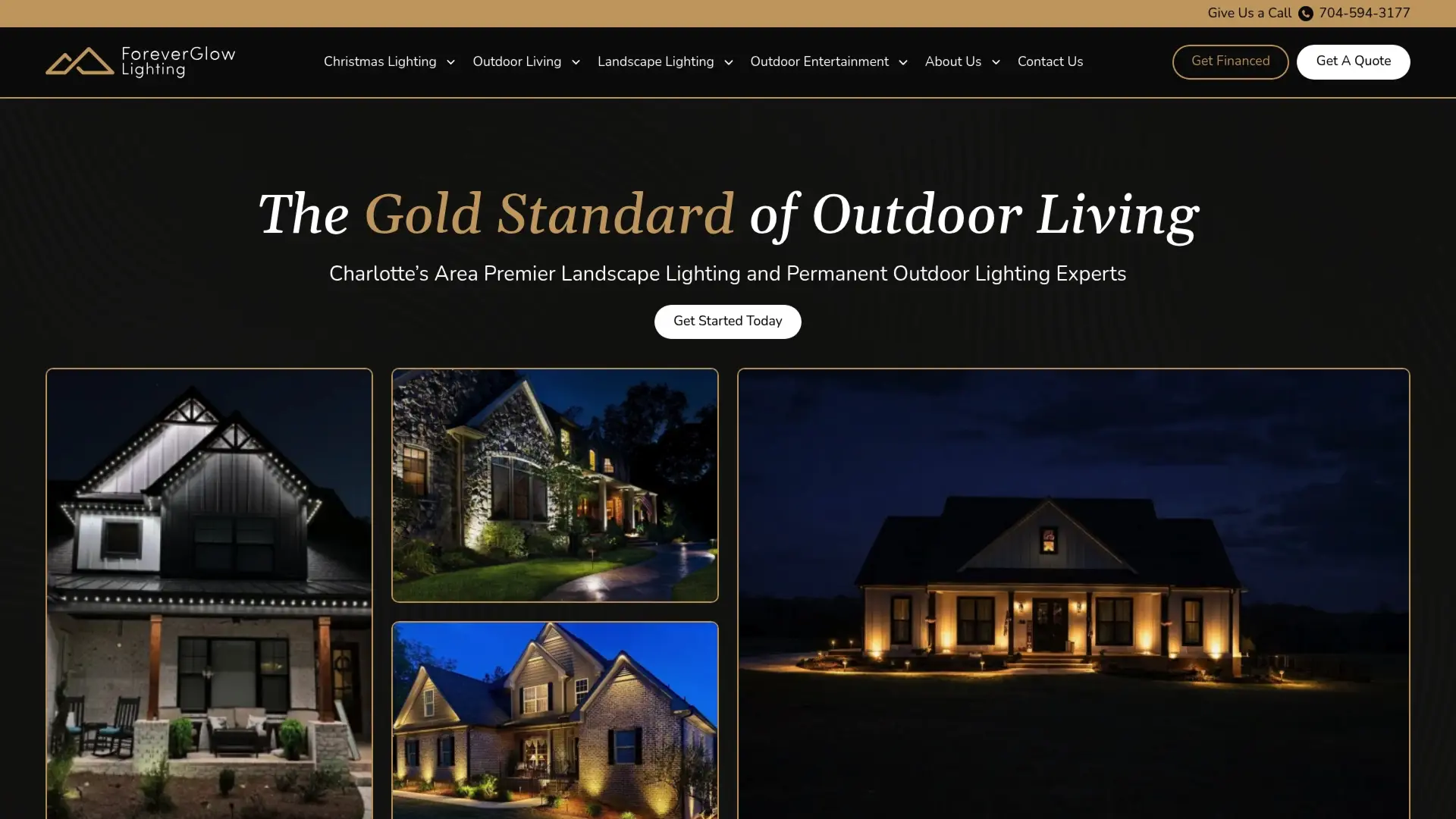
Foreverglowlighting installs smart LED roofline track systems, landscape illumination, patio and bistro string lighting, and commercial exterior lighting across the greater Charlotte area. Every system is controllable from your smartphone with multi-color options, HOA-compliant design, and marine-grade weather resistance built in. You never touch a ladder, and the lighting works year-round, not just in December.
The permanent lighting installation process starts with a no-obligation site survey, moves through design and permitting, and ends with full programming and testing so your scenes are ready the day installation is complete. For homeowners who want permanent holiday and accent lighting without the annual setup hassle, this is the practical alternative to a DIY system that requires ongoing maintenance.
Request a free estimate at foreverglowlighting.com and get a design tailored to your property.
Useful sources and documentation
These links go directly to official documentation, firmware repositories, and manufacturer pages. Prefer official docs over community forks when updating firmware.
- WLED GitHub repository: Official source for WLED firmware releases, OTA update instructions, and the AudioReactive usermod documentation.
- Samsung Edge lighting support: Official Samsung guide covering Edge lighting configuration, color options, and screen-off behavior on Galaxy phones.
- HoleyLight GitHub (Chainfire): Community LED emulation app for punch-hole camera devices; includes battery optimization notes and mode descriptions.
- Glphy for Nothing Phone (manttii): Community tool for custom Glyph matrix animations with audio and notification triggers on Nothing Phone devices.
- GlyphMatrix Tasker Plugin (Gennadiyev): Tasker plugin for static Glyph pattern control; useful for automation chaining on Nothing Phone hardware.
- Lepro B1 AI smart light bulbs: Product page for Lepro’s LightGPM AI scene generation, which creates lighting designs from uploaded photos.
- Studio Light on Google Play: Turns your phone screen into a configurable RGB light panel; no external hardware required.
Official firmware repositories (WLED, HoleyLight) are the safest source for updates. Community forks may lag on security patches or introduce hardware-specific bugs. Always verify the release tag before flashing.