
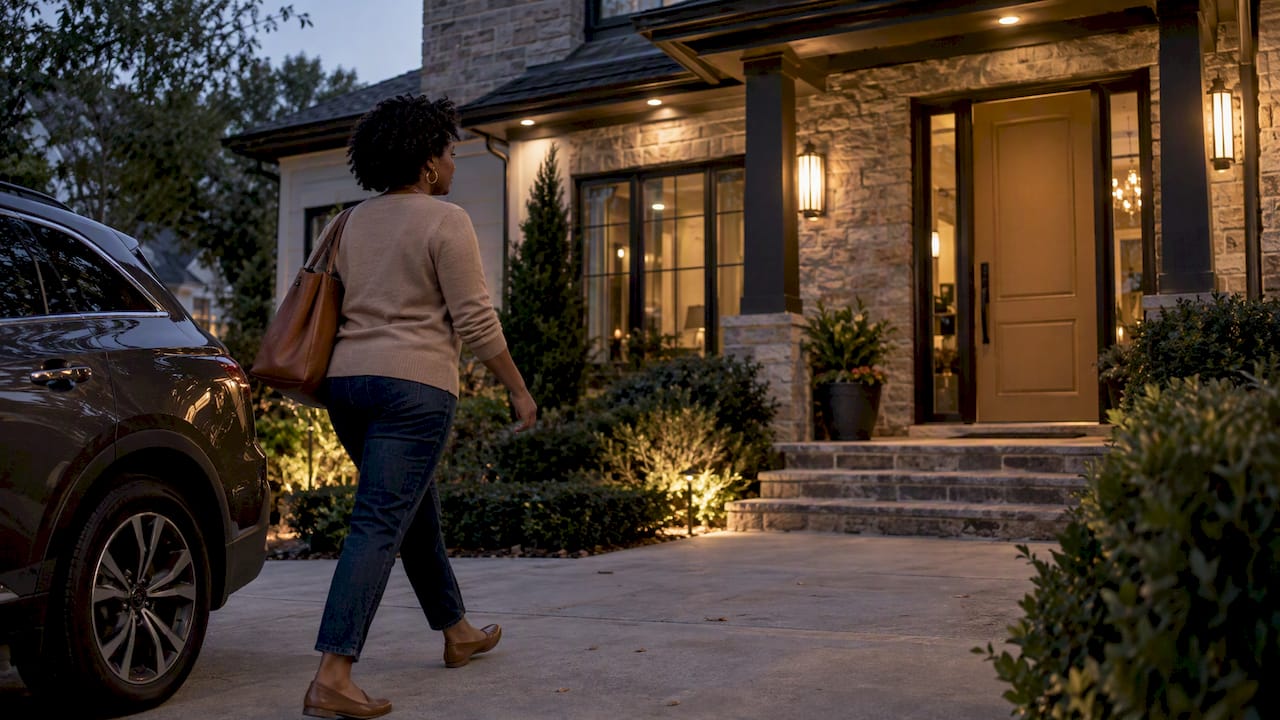
Smart lighting geofencing uses your phone’s location to switch lights automatically. You draw a virtual boundary around your home, and when your phone crosses it, your lights turn on, turn off or change scenes. ENERGY STAR describes it as setting lights to operate a particular way depending on whether your smartphone is in or out of the home. It works well for entry lights, driveways and pathways, as long as you set a sensible radius and keep a backup for the times your phone is late.
This guide explains how geofencing detects arrivals, how to set it up in common apps, how to choose a radius, what to do when it misfires, and where it fits next to motion sensors and schedules. We also cover what it means for outdoor lighting at a Charlotte-area home.
TL;DR
- Geofencing turns lights on or off when your phone enters or leaves a boundary you define, using GPS, Wi-Fi, cellular and Bluetooth signals.
- Set it up in your lighting app by allowing location access, choosing an arrive or leave trigger, picking a center point and radius, then selecting the lights or scene.
- A larger radius triggers sooner, a smaller one triggers closer to the door. Start near 300 meters (about 1,000 feet) and adjust.
- Late or missed triggers usually trace back to phone location permissions, battery settings or a phone that cannot reach the hub. Keep a motion sensor or schedule as a backup.
- For permanent outdoor lighting, geofencing is one trigger among several. The best results come from a system designed with zones and scenes first.
Table of Contents
- What geofencing means for smart lighting
- How to set up geofencing step by step
- Choosing the right radius
- When geofenced lights turn on late or not at all
- Geofencing vs. motion sensors, schedules and Wi-Fi presence
- Using geofencing with outdoor and landscape lighting
- Privacy and account security
- Bulbs, fixtures and what you are actually controlling
- Our perspective
- Get a system built for automation
- FAQ
- Sources
What geofencing means for smart lighting
A geofence is a virtual perimeter around a real place. Your phone knows where it is, your lighting app knows where home is, and the app acts when the two meet or separate.
The phone does the sensing. Wirecutter explains that smart home platforms combine a phone’s wireless signals, including GPS, Wi-Fi, cellular and Bluetooth, to decide whether you are inside or outside the zone. That is why geofencing needs no extra hardware at the door. The lights simply need to be on a system that accepts location triggers.
The same feature underlies the “Home” and “Away” modes in many apps. Wirecutter notes that these toggles let you automate whole scenes, such as lit paths, security settings and climate control, as you arrive or leave.
Arrive and leave triggers
Most apps offer two events:
- Arrive: the phone crosses into the fence. Typical actions are turning on the porch, driveway or pathway lights, or activating an evening scene.
- Leave: the phone crosses out. Typical actions are turning off interior lights, dimming outdoor lights to a security level, or switching to an away scene.
Many platforms also support multiple people. Google notes that presence sensing works best when everyone in the home shares their phone location. If one person does not, an automation might not start when they arrive or leave.
How to set up geofencing step by step
The exact taps differ by brand, but the sequence is nearly always the same. Here are three examples.
TP-Link Kasa and Tapo
TP-Link’s support page says to enable location permission set to “Allow all the time,” then turn on geofencing in the app. Next, add an Arrive/Leave automation, choose the location and radius, and pick the action, such as turning on a light.
Apple Home
With a home hub set up, Apple’s instructions say to tap Add, choose Add Automation, then select People Arrive or People Leave. You can pick a specific person, set a location and time, and attach an accessory or scene. Apple’s own example is an “I’m Here” scene that runs when a family member arrives.
Hubitat and Philips Hue
Hubitat’s documentation says to enable geofencing in its mobile app, set the center and size of the fence, then use the resulting presence events in an automation. For Hue lights, the HueCommand app offers scenes on arrive and leave on iPhone and iPad, though not in its Mac or Apple Watch apps.
A setup checklist that applies to any app
- Grant location access to the lighting or home app, set to always allow rather than only while using.
- Turn off battery saver modes that put the app to sleep in the background.
- Place the center of the fence on your house, not your street.
- Pick a radius (see the next section).
- Choose the action: specific lights, a scene, or a group.
- Add a condition such as “only after sunset” so your porch lights do not turn on at noon.
- Test by walking or driving out of the fence and back, and check the app’s event history.
Choosing the right radius
Radius is the setting that decides whether geofencing feels magical or annoying.
HueCommand’s default radius is 300 meters. Its guidance is that a larger radius triggers sooner, while a smaller one triggers closer to the door. Use that trade-off to match the job:
| Goal | Radius approach | Why |
|---|---|---|
| Warm up a long driveway or lit entry before you pull in | Larger | Lights are already on when you arrive |
| Avoid lights turning on when you drive past on the main road | Smaller | Reduces false arrivals |
| Rural lot or large estate | Larger, with a sunset condition | Long approach, phone signals vary |
| Dense neighborhood or townhome | Smaller | Neighbors’ Wi-Fi and cell towers blur the boundary |
| Turning off lights after you leave | Medium | Gives you time to get away from the door before it triggers |
If you drive a few minutes to a grocery store and the fence is huge, the lights may flip on every time you return from errands. If it is tiny, the lights may come on after you are already fumbling for the door. Adjust in small steps and test over a week of normal routines, not one trial.
When geofenced lights turn on late or not at all
Geofencing relies on a phone that decides when to report its location. That makes the trigger reliable most of the time, but not instant.
Late triggers. HueCommand notes that a trigger can be late because iOS decides when to report a boundary crossing. The app cannot force it. A larger radius gives the system more room to be late and still beat you to the door.
Phone cannot reach the hub. If the phone is not on your local network when it triggers, some apps need a remote or cloud connection to send the command. HueCommand, for example, requires its Remote Control feature to send the scene through the Hue cloud in that case.
Repeat events. The same source says it ignores repeat events within 60 seconds, so a phone that bounces at the edge of the fence will not flicker your lights on and off.
Someone is still home. Google says motion detected by a thermostat may delay the switch to Away, so the system does not shut things down on someone who is still inside. That is by design.
Permissions and battery. If nothing fires, check location permission first, then background app refresh and battery optimization, then the event log in the app.
A quick troubleshooting order:
- Confirm location is set to always allow.
- Confirm the app has background activity enabled.
- Check that the phone and hub are both online.
- Look at the last arrive or leave event in the app.
- Enlarge the radius a bit and retest.
Geofencing vs. motion sensors, schedules and Wi-Fi presence
No single trigger is best. Each answers a different question.
| Trigger | Answers | Strength | Weakness |
|---|---|---|---|
| Geofencing | “Is a person coming or going?” | Lights are ready before you arrive | Depends on phone settings and timing |
| Motion sensor | “Is something moving here right now?” | Fast, local, works without a phone | Cannot anticipate arrival, can trigger on animals or wind |
| Schedule | “What time is it?” | Predictable | Ignores whether anyone is actually home |
| Wi-Fi presence | “Is the phone on my network?” | Reliable once connected | Only detects you after you are in range of the router |
Google’s Home/Away Assist is a useful example of mixing signals. It uses phone location, including GPS, cellular and Wi-Fi data, along with activity sensors in Nest products, and does not rely on a fixed schedule.
Wirecutter’s view is that geofencing goes beyond on and off commands, because it lets the home prepare for you, which is more convenient than a static schedule. It also points out that geofencing works best as one layer of a broader setup, combined with local sensors and manual overrides for the times an automation fails or is unwanted.
For outdoor lighting, we agree. Our guide on the role of motion sensors outdoors covers the local layer, and our piece on seasonal lighting automation covers the schedule layer.
Using geofencing with outdoor and landscape lighting
Yes, geofencing can control outdoor lights. Per Wirecutter, you link your location to automations that trigger architectural or landscape lights when you arrive or leave. What you need is a compatible system, often managed through platforms such as Google Home, Amazon Alexa or Apple HomeKit, or a manufacturer app that supports geofence triggers.
The important point is that the trigger is the easy part. The lighting underneath it determines whether the result looks good and feels safe.
A well-planned outdoor system divides the property into zones, such as entry, driveway, pathways, garden beds, patio and facade, so each can respond differently. Our article on outdoor lighting zones installers plan before wiring explains that process. Once zones exist, you can build scenes on top, as described in our outdoor lighting scene-setting guide.
Good arrival scenarios for a Charlotte-area home include:
- Evening arrival: pathway and entry lights come on at a comfortable level, and the facade accents follow.
- Departure after dark: most accents dim, while entry and driveway lights stay at a low security level.
- Extended away: only the lights you choose stay on, and the system can return to a regular look when you come back.
- Holiday season: a roofline scene and color pattern can start when you get home, which pairs well with permanent track systems. See our guide to customizing lighting patterns from your phone.
If you want a broader view of controlling a yard from your phone, start with our smart landscape lighting app control guide.
Connectivity matters outside
Geofencing sends a command from your phone, through your network or a cloud service, to the lighting controller. If the controller sits at the edge of your Wi-Fi coverage, the command can fail. Large lots, detached garages and docks are the usual trouble spots. Our guide on outdoor lighting Wi-Fi range explains when to use mesh, wired connections or professional help.
Privacy and account security
Geofencing uses your location, so it deserves a short privacy review.
Google states that location data collection for presence is off by default and users must choose to turn it on, and that it can be turned off at any time. It also says its Home app does not continually record exact phone locations. It only needs to know whether someone has left or returned.
Before enabling any geofence:
- Read what location data the app stores and for how long.
- Share location only with household members who need it.
- Use strong, unique passwords. Lutron advises owners to protect the username and password for their Smart Bridge, not share them, and avoid easy-to-guess or reused ones.
Also remember that a lit home with a predictable pattern can tell outsiders something. Avoid a setup where every light goes dark the moment you leave if you want the house to look occupied.
Bulbs, fixtures and what you are actually controlling
Geofencing is only as good as the lights it commands. Plug-in bulbs and consumer smart switches work indoors but are not designed for a roofline or a soaked garden bed. If you are weighing options for indoor fixtures, this comparison of LED, incandescent and smart bulbs is a helpful starting point. For the exterior, you want hardware rated for weather, with a controller that supports the automations you plan to use.
Our perspective
We install permanent outdoor lighting around Charlotte, and we see the same pattern in nearly every home. People ask first about the trigger, and the lasting satisfaction comes from the design underneath.
Geofencing is a fine convenience. It is good at one narrow job: telling the system that someone is on the way. It is not good at being the only thing standing between you and a dark driveway. Phones sleep, batteries die, guests do not have your app, and a delivery driver passing the fence does not carry your location.
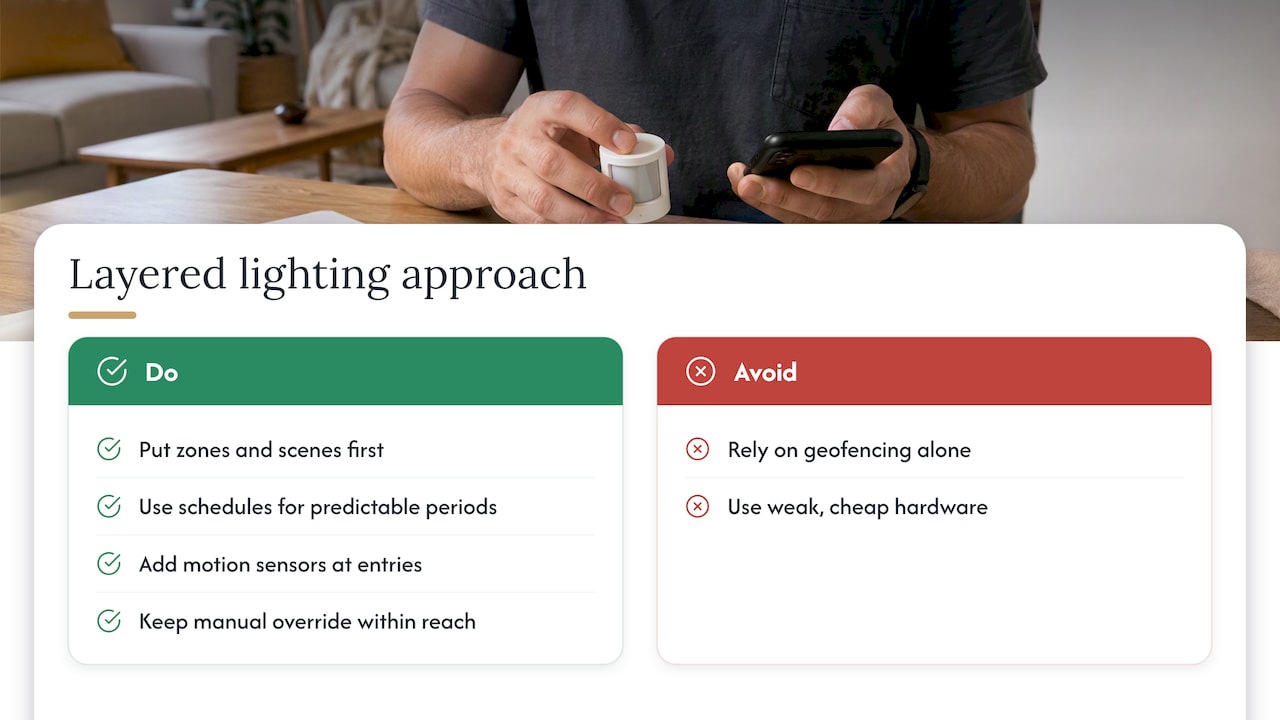
So we design in layers. Zones and scenes come first. Schedules handle the predictable parts of the day. Motion sensors cover the entry and side yards where a person’s presence matters right now. Geofencing then adds the welcome home and the away routine on top. We also keep a manual override within reach, because a lighting system should never make you feel locked out of your own house.
The climate matters too. Carolinas heat, humidity and storms are hard on weak connections and cheap hardware, which is why we use commercial-grade, weather-engineered components and pair them with the GlowCare maintenance program. Automation that works only on a sunny week is not automation.
— Dave
Get a system built for automation
If you want arrival lighting that looks right and keeps working, start with the lights themselves. Forever Glow Lighting designs and installs permanent roofline tracks, landscape and architectural lighting, patio and deck lighting, all controllable from your smartphone, with HOA-compliant design. For roofline and holiday scenes, see our permanent lighting options. For the yard and facade, see landscape lighting design.
Request a free estimate and tell us how you want your property to respond when you come home. We will explain which triggers suit your layout and which backups to build in. You can also read about our GlowCare maintenance subscription and our approach to placing security lighting.
FAQ
Does geofencing drain my phone battery?
Modern phones use the operating system’s own location services to watch for boundary crossings, so the drain is usually small compared with running navigation. Battery saver modes can stop the app from receiving location updates in the background, which causes missed triggers. If lights fail to respond, check that background activity is allowed for the app.
Can geofencing work for more than one person?
Yes, in most platforms. Google notes that presence works best when everyone shares their phone location. Apple lets you pick specific people or any shared user for an arrive or leave automation. Decide whether lights should react to the first person to arrive or the last person to leave.
Should I use geofencing or a motion sensor for outdoor lights?
Use both. Geofencing prepares the property when someone is approaching, and a motion sensor reacts to movement on the spot, with no phone required. Combining them also gives you a fallback if either one fails.
What radius should I start with?
A radius near 300 meters is a common default in apps such as HueCommand. Make it larger if you want lights on well before you arrive, and smaller if you get false triggers from passing nearby. Test for a week before settling.
Will geofencing work without an internet connection?
It depends on the system. If the phone can reach the hub on your local network, the command can go direct. If not, many systems need a cloud or remote connection to deliver it. Check your app’s documentation and keep a manual control option.
Sources
- Smart Lighting, ENERGY STAR
- How Geofences Make Your Home Work Better, Wirecutter
- Learn about presence-based automations, Google Home
- Learn more about Home/Away Assist, Google Home
- How to Set Up Geofencing on the Tapo/Kasa App, TP-Link
- How to Set Up Mobile Presence Sensing, Hubitat
- Philips Hue Geofencing: Scenes on Arrive and Leave, HueCommand
- Create scenes and automations with the Home app, Apple Support
- Caseta Wireless Smart Bridge FAQ, Lutron
- LED vs. Incandescent vs. Smart Bulbs